How to use Veo 3.1 Lite's image-to-video mode to create product demos, social media content, and brand videos from still photos — with real examples and workflow tips.
TL;DR — When to use Image-to-Video
Use image-to-video when your subject has a specific visual appearance that a text prompt cannot reliably reproduce — a product with exact branding, a character with a defined look, or any scene where the starting frame must match a real asset you own. Use text-to-video when generating scenes from scratch where visual details do not need to match an existing reference.
New to Veo 3.1 Lite? Read the model overview first for pricing, specs, and how it fits into Google's video model lineup.
Text-to-video is powerful, but it's probabilistic — you describe what you want and the model interprets it. Image-to-video is different: you provide the exact visual starting point, and the model animates from there.
For product work, this matters. Your product has a specific shape, color, material, and branding. Text prompts can't guarantee those details. An image can.
Veo 3.1 Lite supports image-to-video at 720p and 1080p, in both 16:9 and 9:16 formats, for 4s, 6s, or 8s durations. At 20 credits for 8 seconds on Veo 4.0, it's cheap enough to run 5–10 variations on a single product shot and pick the best one.
You provide:
The model generates video that starts from your image and animates outward. The image sets the visual identity; the prompt directs what happens next.
The key insight: the image handles "what it looks like," the prompt handles "what it does." Split the work that way and you get consistent, directed output.
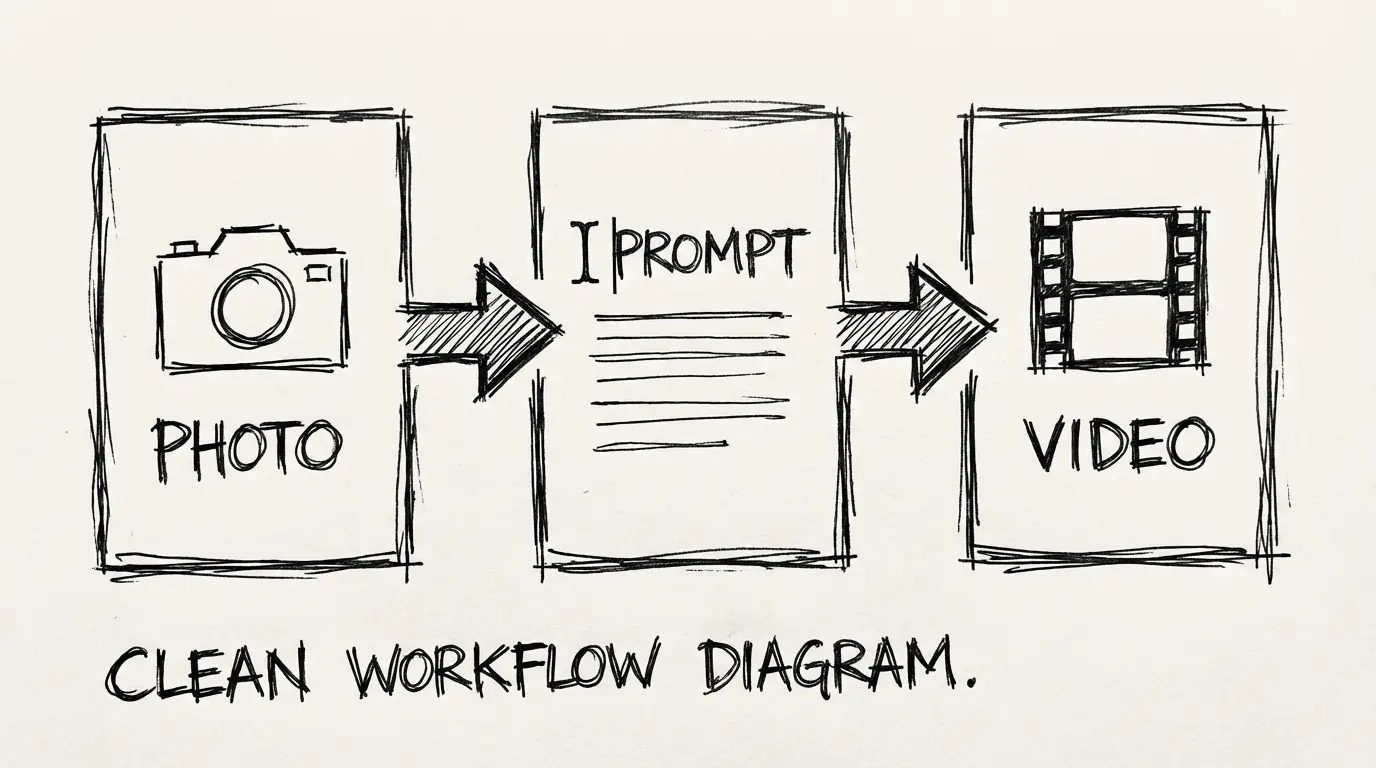
Not all product photos work equally well. Here's what the model handles reliably versus what causes problems:
| Image Type | Works Well | Avoid |
|---|---|---|
| Clean product on solid/simple background | ✅ | |
| Single hero product, centered | ✅ | |
| High contrast, clear edges | ✅ | |
| Multiple SKUs in one frame | ❌ Confuses motion focus | |
| Heavy text/watermarks over product | ❌ Text artifacts in motion | |
| Low-res or heavily compressed images | ❌ Blurry output | |
| Extreme wide shots with small product | ❌ Product loses detail |
Best practice: Use the cleanest version of your product photo — the same one you'd use for an e-commerce listing. Remove backgrounds if possible. The cleaner the input, the more control you have over the output.
Veo 3.1 Lite supports setting just the first frame (your product image as the opening shot). For controlled transitions — where you want the video to start at point A and end at point B — you can also set a last frame.
Use cases:
This technique gives you cinematic control without complex prompting. The model interpolates the motion between your two anchors.
These prompts are structured for image-to-video. For a deeper dive into Veo 3.1 Lite's full prompting language — shot types, camera moves, lens control — see the Veo 3.1 Lite Prompt Guide.
These prompts are structured for image-to-video. The image provides the visual baseline — the prompt directs motion and feel.
Use a high-res product photo with a clean background. Ideally: PNG or JPG at 1000px+ on the short side, your standard e-commerce hero image format.
For Instagram/TikTok/Shorts: 9:16 vertical, 6s. For website embeds or YouTube: 16:9, 8s. For quick social hooks: 9:16, 4s.
Go to Veo 3.1 Lite on Veo 4.0, switch to Image-to-Video mode, and upload your product photo.
Copy one of the templates above, or write your own. Remember: the image handles appearance — your prompt only needs to direct motion, camera, and audio.
Run 2–3 variations with the same image but slightly different prompts (e.g., dolly in vs. static + rotate). At 20 credits per 8s clip, 3 variations = 60 credits.
No post-processing needed for social. For product pages or ads, you may want to trim or loop the clip in a basic video editor.
The product looks distorted after a second or two The model is over-animating. Reduce motion in your prompt: add camera static or minimal movement, only [specific element] moves.
Background changes unexpectedly Your background has too much detail and the model is reinterpreting it. Reshoot on a simpler background, or add background unchanged, only product moves to your prompt.
The video looks like a slideshow, not smooth motion Prompt for continuous motion: smooth continuous camera move or fluid 360 rotation. Avoid start/stop action descriptions.
Portrait image shows black bars in 9:16 output Crop or pad your input image to 9:16 before uploading. Mismatched aspect ratios cause the model to letterbox.
Image-to-video is the right mode when your subject has a specific appearance that text can't reliably reproduce. For product work, this is almost always the case — your product has a precise shape, color, and branding that a text prompt interprets loosely. An image provides the exact visual anchor.
Veo 4.0's Veo 3.1 Lite generator supports image-to-video with the same prompt interface. Upload your product photo, paste a prompt from above, pick your format, and generate.
→ Try Veo 3.1 Lite Image-to-Video
20 credits for 8 seconds. Half the cost of Veo 3.1.
Video examples use footage from the Veo 3.1 model family. Workflow recommendations are based on practical testing of image-to-video generation. Results vary by input image quality and prompt specificity.
Page-specific visual proof
This page now includes owned media examples and in-body links so readers can move from search intent into a relevant UndressMe AI creation path.
Current guide: Veo 3.1 Lite Image-to-Video: Turn Product Photos Into Clips in Under a Minute
REFINE RESULTS
Dedicated generators for distinct visual outcomes.
Start from a look, then choose the matching workflow.
Start with the look, then reuse the same character direction across photos, prompts, and motion.
Move the strongest still image into a short visual clip once the style is stable.
Help crawlers and readers move between transactional, visual, anime, and safety pages.
A broader in-body crawl path across the current SEO page set.
Use these as proof-rich paths from girlfriend intent into image, video, and prompt workflows.


Google Veo 4 launched in April 2026 with storyboarding, 10–30 second clips, multi-angle generation, and real-time editing. Here's what it can do, how it compares to Veo 3.1, and whether it's right for your workflow.

Learn exactly how to prompt Veo 3.1 Lite for cinematic results. Covers shot types, camera movement, audio, and 20+ copy-paste prompts across genres — no fluff.

Google launched Veo 3.1 Lite on March 31, 2026 — the most affordable model in the Veo family at $0.05/sec for 720p. Here's what it can do, what it can't, and whether it's right for your workflow.